Drop Columns Transform
Drop Columns removes fields that the rest of the workflow does not need.
Basic Usage
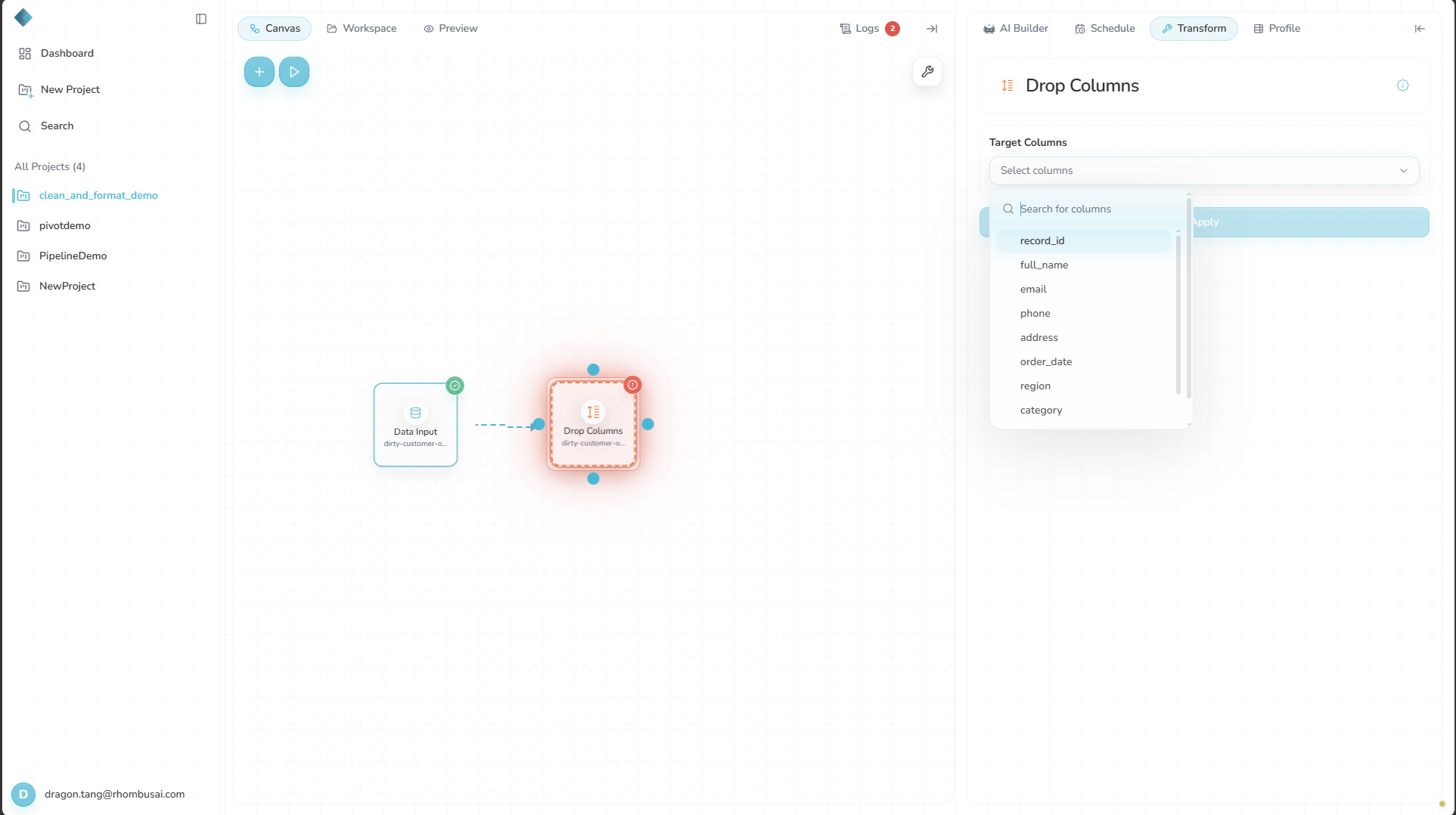
To drop one or more columns:
- Select Drop Columns from the transform menu.
- In the "Columns to drop" field, select the columns to remove.
- Select Apply.
Configuration Options
Basic Options
- Columns to Drop: Select one or more columns to remove from the dataset.
Examples
Example: Removing Personal Information
Input Dataset:
| ID | Name | Age | City | Salary |
|---|---|---|---|---|
| 1 | Alice | 30 | New York | 75000 |
| 2 | Bob | 35 | Los Angeles | 80000 |
| 3 | Charlie | 28 | Chicago | 70000 |
Configuration:
- Columns to drop:
Age,Salary
Result:
| ID | Name | City |
|---|---|---|
| 1 | Alice | New York |
| 2 | Bob | Los Angeles |
| 3 | Charlie | Chicago |
caution
Dropped columns are no longer available to downstream nodes. Before applying the transform, check that no later step needs them.
Best Practices
- Drop large, unused columns early to keep the rest of the workflow smaller.
- Before removing identifying fields, check whether distinct rows will then look identical.
- If the workflow is shared or audited, note why each column was removed.